 USA
USA Mexico
 Canada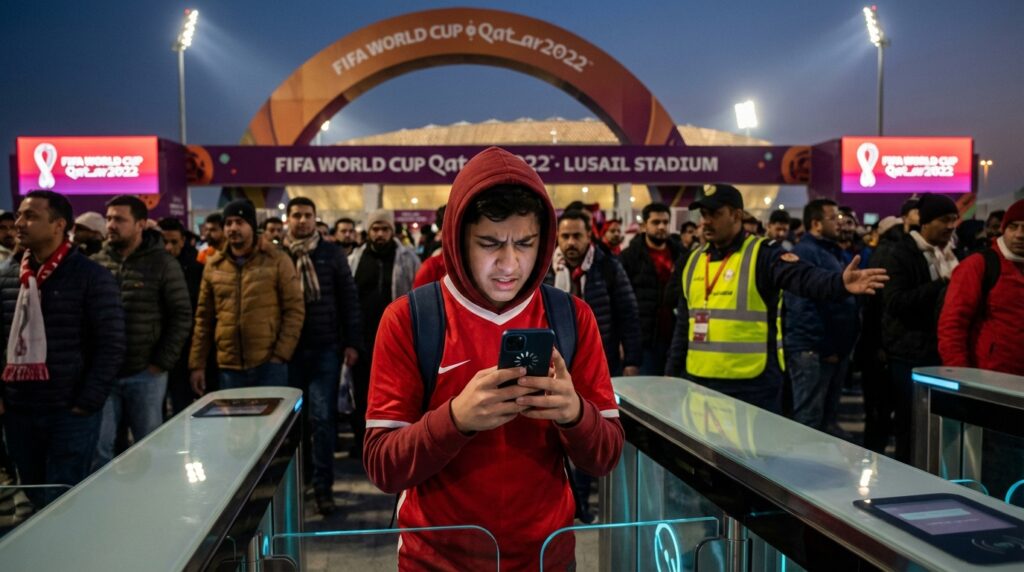
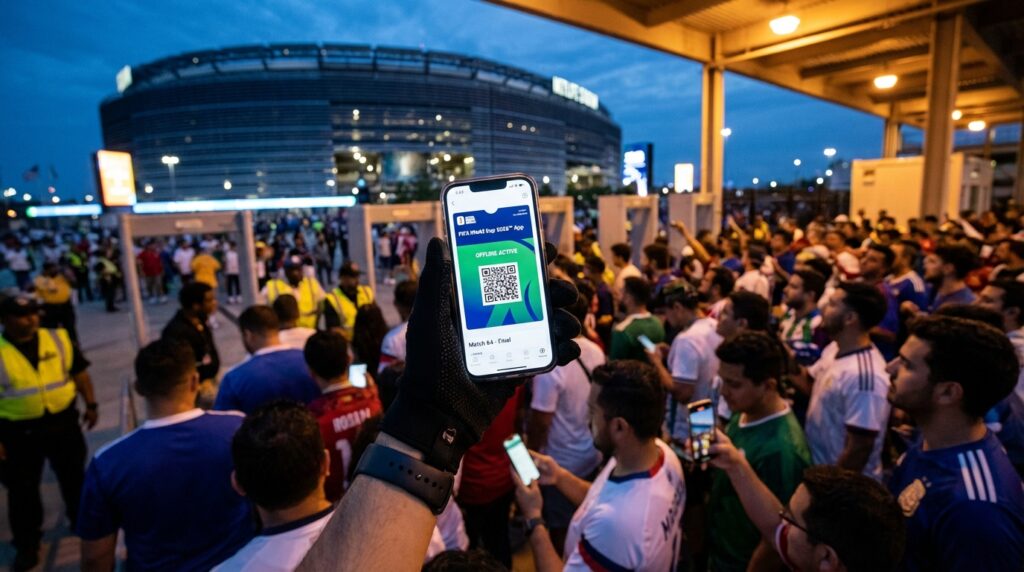
Have you ever felt that sudden, icy drop in your stomach when technology violently betrays you at the absolute worst possible moment? Picture this highly realistic scenario. You just traveled thousands of miles, spent a small fortune on hotels, and finally arrived at the massive concrete perimeter of a 2026 FIFA World Cup stadium. You can hear seventy thousand fans chanting inside. You can smell the incredible stadium food roasting in the air. You step right up to the electronic turnstile, pull out your expensive smartphone, and confidently open your ticketing app.
Suddenly, your screen freezes completely. A little digital circle just spins and spins endlessly, mocking your rising panic. Your mobile ticket refuses to load, the line of angry fans behind you starts groaning, and your dream vacation feels like it is instantly slipping through your fingers.
Take a deep breath and stay completely calm. If your digital pass refuses to display at the stadium gate, you are absolutely not alone. This is a highly common, well-documented issue caused by massive network congestion, sneaky device limits, or sudden cellular blackouts. Let us dive deep into exactly why this happens and give you the ultimate, step-by-step playbook for rescuing your game day experience when your screen goes blank.
The Mobile Ticket Reality for the World Cup
We are officially living in a brand new era of global sports entertainment. The 2026 tournament operates on a strictly mobile-only digital framework. This means the days of holding a beautifully printed cardboard ticket or folding up a paper PDF document in your wallet are completely over.
All official entry passes live exclusively inside the official FIFA World Cup 2026 App. The entire security system is built around highly advanced, dynamic QR codes. Think of these dynamic codes as living, breathing digital locks. They constantly refresh and update themselves on your smartphone screen to prevent professional counterfeiters from stealing your seat. Because of this incredibly strict security measure, you must play entirely by the digital rules established by the tournament organizers.
Why Screenshots Are a Guaranteed Rejection
When panic sets in, human beings look for the fastest possible shortcut. You might be tempted to simply take a photo of your QR code earlier in the day and attempt to scan that static picture at the turnstile. Do not even think about trying this strategy.
The electronic stadium gates utilize laser scanners that are specifically engineered to identify and instantly reject static screenshots. If you try to hand the security guard a simple photo of your ticket, the machine will flash a bright red error light. The guard will turn you away immediately, and you will be sent to the absolute back of the longest troubleshooting line in the stadium while your favorite team kicks off. You must have the live app or a verified native wallet pass to enter the building.
Prevention Is Your Ultimate Game Day Shield
The absolute best way to survive a digital ticket disaster is to stop it from ever happening in the first place. You have to remember that for severe security reasons, the actual scannable QR code often appears inside the app only a few hours before the official kickoff time. This prevents early counterfeiting but forces you to download the barcode during a highly stressful window of time.
Caching The Dynamic QR Code Early
Do not wait until you are standing in a massive crowd of seventy thousand people to open your app for the very first time. You must execute your digital preparation before you ever leave your comfortable hotel room.
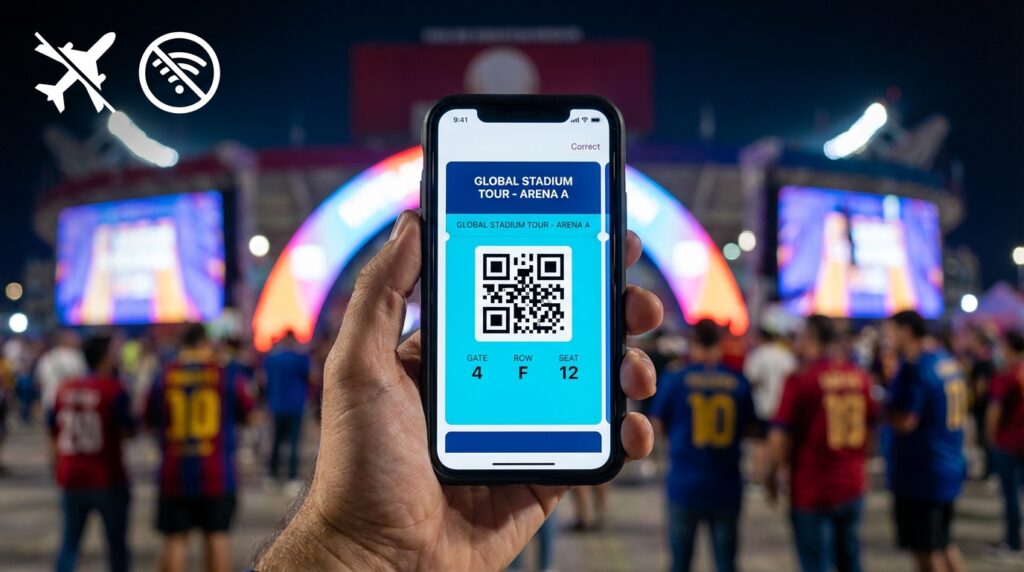
The most reliable fix is pure, aggressive prevention. You need to open the official application while you are connected to a blazing-fast, highly stable Wi-Fi network. Log securely into your official FIFA account, locate your specific match inventory, and allow the application to fully sync with the servers. By doing this on a strong connection, the app actively caches the required data onto your physical phone storage, preparing it for the upcoming offline environment.
Leveraging Apple Wallet and Google Wallet
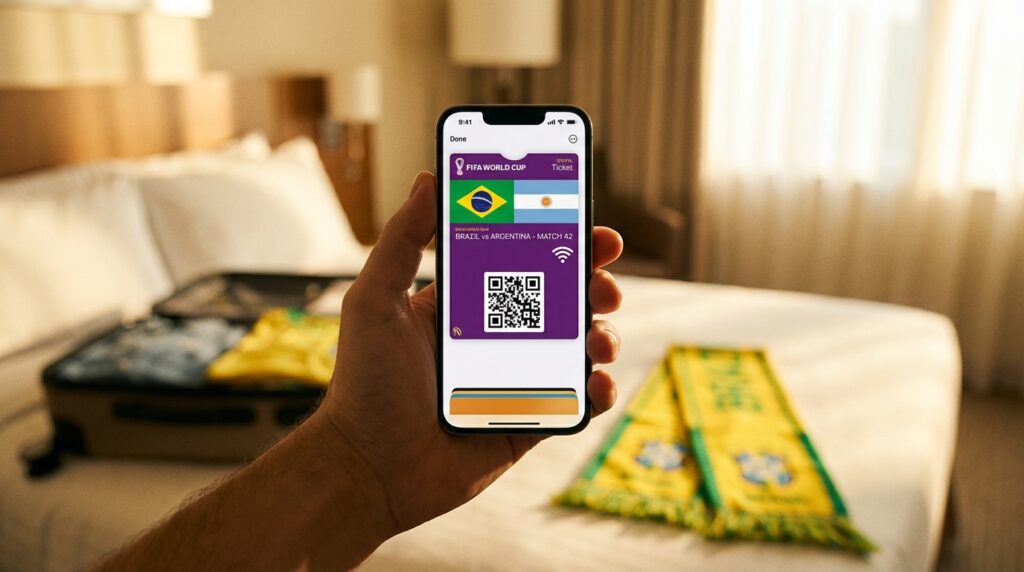
While the official application is fantastic, you need an impenetrable, completely bulletproof backup plan. Immediately after you download the app and verify your tickets, you must save every single ticket to your native digital wallet.
If you use an iPhone, push the tickets directly to your Apple Wallet. If you operate an Android device, save them directly to your Google Wallet. Why is this specific step so incredibly vital to your survival? Because native wallet passes are specifically engineered by tech giants to display the QR code perfectly without any internet connection. Once that pass is securely cached inside your native wallet, it becomes one hundred percent offline. You could be standing in a total cellular dead zone, and your ticket will still pop up brightly and scan flawlessly at the turnstile.
Emergency Troubleshooting Steps at the Turnstile
You did everything right, but technology is still throwing a massive temper tantrum right at the gate. You are holding up the line, and the app refuses to display your pass. Before you completely lose your mind, step slightly out of the main line and try these rapid-fire troubleshooting hacks.
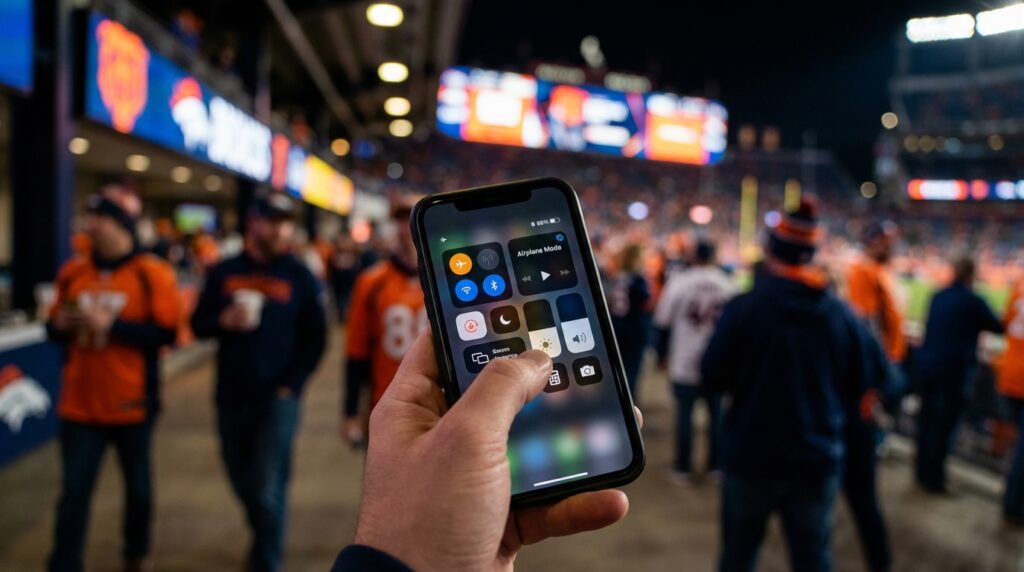
The Airplane Mode and Force Close Hacks
Sometimes, your smartphone gets deeply confused when it tries to connect to overwhelmed cellular towers. It wastes crucial processing power trying to grab a weak signal instead of loading your app.
First, try force-closing the application entirely. Swipe it completely away from your active background screens and reopen it fresh. This forces the app to initiate a brand new handshake with the server. If that fails, toggle your phone directly into airplane mode for about ten seconds, and then turn it back off. This acts as a hard reset for your cellular antenna, forcing your phone to grab the absolute strongest available local signal. You should also switch your phone into low-power mode, which stops background applications from stealing your precious bandwidth while you are trying to load your ticket.
Fixing the Dreaded Multiple Device Error
Here is a highly specific, incredibly frustrating error that catches thousands of fans off guard every single season. You open the app, but instead of seeing your ticket, you see a terrifying message that says “Unable to access” or you receive a bizarre “different device error.”
What does this actually mean? For severe security reasons, the ticketing platform actively limits how many physical devices can hold your secure tickets simultaneously. If you logged into your account on your iPad back at the hotel room, or if you checked your tickets on your spouse’s phone earlier in the week, the system still thinks those devices own the tickets. To fix this instantly, you must log out of your account from any other phone or tablet immediately. Once those secondary devices are logged out, your primary smartphone will regain immediate access to your digital passes.
Your Ultimate Lifeline Inside the Stadium Plaza
You force-closed the app. You toggled airplane mode. You verified that you are only logged into one device. But your screen remains hopelessly blank. The internet is completely dead, and you are starting to sweat. It is time to deploy your absolute final lifeline.
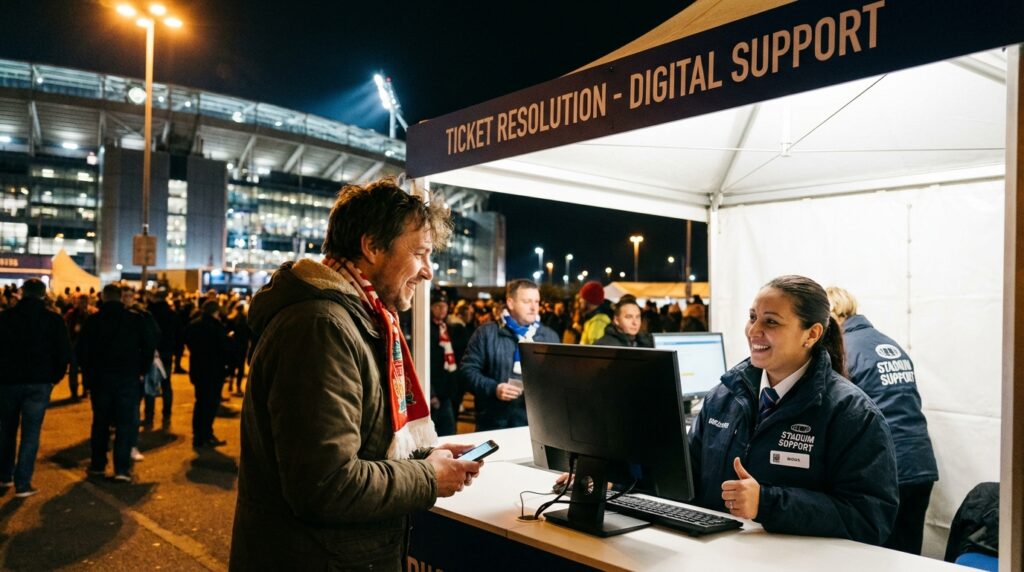
Locating the Guest Services Kiosk
Do not argue with the security guards at the turnstile. They do not have the technical tools or the digital clearance to manually verify your broken app. Instead, you need to head straight to the nearest Guest Services or Ticket Resolution desk.
These highly specialized support tents are clearly marked and strategically located near every single major entry plaza at the venue. The staff working inside these kiosks are the absolute unsung heroes of game day. They possess specialized computer terminals that are hardwired directly into the central ticketing database, completely bypassing the collapsed cellular networks outside.
Essential Documents to Prove Your Identity
You cannot simply walk up to the resolution desk and demand a ticket. You must prove exactly who you are and prove that you legitimately purchased the seats.
When you approach the window, immediately present the email address officially associated with your purchasing account. You must physically hand them your official government-issued passport or a valid photo identification card that perfectly matches the name on the account. Finally, pull up the original order confirmation email or receipt. If you can provide these three crucial pieces of evidence, the highly trained staff can manually verify your purchase history within their database and grant you physical entry in almost every single case. Always remember to bring a fully charged phone plus a robust portable power bank to ensure your device stays alive long enough to show them that crucial confirmation email.
Related post: Transferring Digital Stadium Tickets to Friends Without Wi-Fi
Surviving the Massive Cellular Network Crash
We have mentioned network congestion several times, but you truly need to understand why cell service always violently collapses near major sporting events.
When you cram seventy thousand highly energized people into a single concrete footprint, they all attempt to upload videos, text their friends, and refresh their apps at the same geographical second. The local cellular infrastructure simply cannot handle that massive, sudden spike in demand. It is exactly like trying to force a raging tsunami of water through a standard garden hose. The network jams, your signal drops to absolutely zero bars, and you are suddenly flying completely blind in the dark.
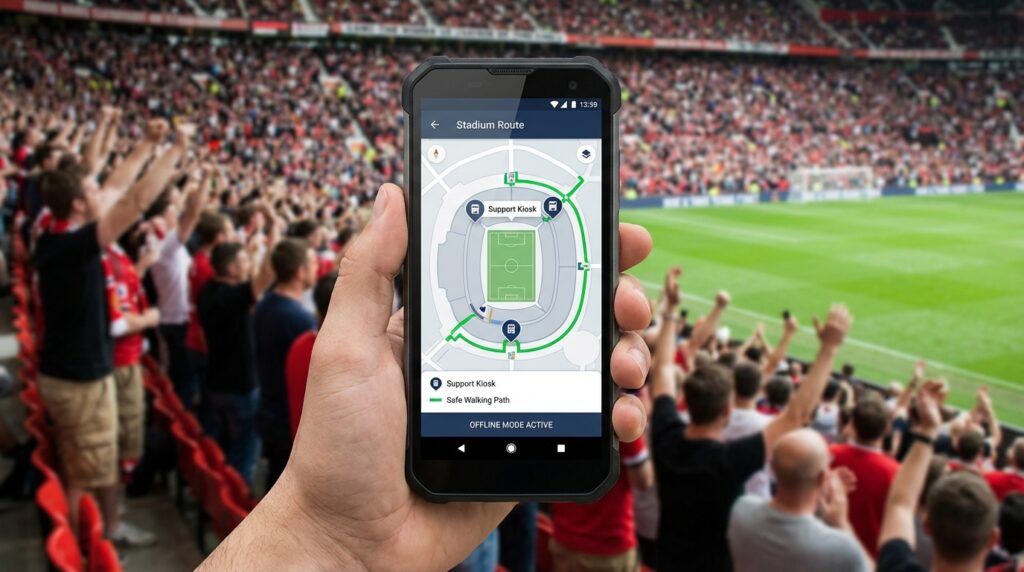
Navigating Safely With the Stadium Route App
This massive, highly predictable digital blackout is exactly why you absolutely must pre-download the offline Stadium Route app well before you ever travel to the venue. Think of this brilliant application as your personal, indestructible digital compass.
Because the app securely caches all the crucial local transit maps, architectural layouts, and specific stadium data directly onto your phone’s hard drive, it operates completely flawlessly without requiring a single drop of internet data. When your ticket app crashes and you desperately need to locate that hidden Guest Services kiosk, your Stadium Route app will instantly map the exact, fastest walking path to the resolution desk.
Furthermore, when the match ends, and the entire crowd pours out simultaneously, the application will guide you along the absolutely safest pedestrian routes away from the chaotic gridlock. You can easily locate your designated rideshare pickup zones or public transit stations without ever worrying about a frozen screen. You completely bypass the panic of a dead cellular network, ensuring your game day logistics remain entirely smooth and totally controlled.
Ending Lines
Experiencing a mobile ticket failure at the stadium gates is a stressful moment, but it absolutely does not have to ruin your highly anticipated 2026 FIFA World Cup experience. By understanding the strict digital reality of dynamic QR codes and totally rejecting useless screenshots, you set yourself up for ultimate success. Rely heavily on pure prevention by downloading your app on a strong Wi-Fi connection and pushing your passes directly into your offline Apple or Google Wallet before you ever leave your hotel. If you hit a digital roadblock at the turnstile, execute rapid troubleshooting hacks like toggling airplane mode or fixing multiple device login errors. When all else completely fails, confidently approach the Ticket Resolution desk with your passport and confirmation emails ready for manual verification. Most importantly, never let a collapsed cellular network leave you wandering through the massive crowds.